USB-C vs Thunderbolt Docks: A Compatibility Guide

A dock looks like a simple one-cable upgrade until one monitor mirrors instead of extends, the laptop charges slowly, or a fast SSD crawls because the wrong cable is in the chain. Most modern docks use the same oval USB-C plug, while the useful features come from the protocol behind that plug.
The practical answer is: start with the laptop port, then choose the dock by displays, charging wattage, bandwidth and cable certification. USB-C is the connector. USB4, Thunderbolt 4, Thunderbolt 5, DisplayPort Alt Mode, MST, DisplayLink and USB Power Delivery decide what the desk can actually do. PKH Computing is independent; our review boundaries are on /about/ and our sourcing policy is on /editorial-policy/. This guide uses public specifications and manufacturer documentation, not first-hand lab testing.
USB-C vs Thunderbolt docks: the short decision tree
If the laptop has a plain USB-C port and the manufacturer does not mention DisplayPort Alt Mode, USB4 or Thunderbolt, treat it as data and charging only until proven otherwise. A display dock cannot add native video output that the host never supplies.
If the laptop has USB-C with DisplayPort Alt Mode, a USB-C dock can usually cover one external display, Ethernet, USB accessories and charging. On many Windows laptops, dual displays may work through MST, but that same dock may mirror on macOS.
If the laptop has USB4, choose a USB4 dock or a Thunderbolt dock that explicitly supports USB4 hosts. The USB-IF USB4 overview says USB4 can share one high-speed link between data and display protocols.
If the laptop has Thunderbolt 4, a Thunderbolt 4 dock is the mainstream compatibility baseline for a serious desk. It is usually the cleaner choice for dual displays, fast storage, wired networking and reliable downstream ports.
If the laptop has Thunderbolt 5, consider Thunderbolt 5 only when the workload can use it: high-resolution displays, high refresh rates, fast external NVMe storage or heavy mixed I/O. A Thunderbolt 5 dock connected to a Thunderbolt 4 laptop falls back to the lower capability.
If a Mac needs more independent displays than Apple officially supports, look at DisplayLink as a workaround, not as native Thunderbolt video.
USB-C is the socket, not the promise
The USB-IF Type-C page describes Type-C as a smaller, reversible connector ecosystem, not a guarantee that every port has the same abilities. A laptop USB-C port may support USB data only, charging, DisplayPort Alt Mode, USB4, Thunderbolt, or several of those at once.
That difference matters in UK retail listings. Look for phrases such as Thunderbolt 4, Thunderbolt 5, USB4 40Gbps, USB 40Gbps, DisplayPort over USB-C, or USB-C with Power Delivery. If the listing only says USB-C charging, assume less until the manufacturer confirms video and data support.
For laptop context, pair this dock checklist with our best student laptops in the UK for 2026. Many student laptops include USB-C, but budget models may not be built for a dual-monitor desk.
What USB4 changes
USB4 makes USB-C docking more capable because it can carry multiple data and display protocols over the same high-speed link. USB-IF says USB4 builds on previous USB architectures, uses technology based on the Thunderbolt protocol, supports dynamic bandwidth sharing, and can reach up to 80Gbps with certified cables.
That does not make every USB4 laptop equivalent to every Thunderbolt laptop. Some implementations are stronger for display output, some for storage, and some omit features buyers assume are present.
A USB4 dock is a good middle ground for a modern Windows laptop that needs one or two monitors, charging, Ethernet and fast USB storage. It is less predictable for mixed fleets of older machines.
Thunderbolt 4 is the safe mainstream dock choice
The Thunderbolt FAQ describes Thunderbolt as a USB-C superset that adds 40Gbps, 80Gbps or 120Gbps Thunderbolt connections plus DisplayPort from a single USB-C port. For current buying, Thunderbolt 4 is predictable because certified docks tend to set clearer expectations than generic USB-C hubs.
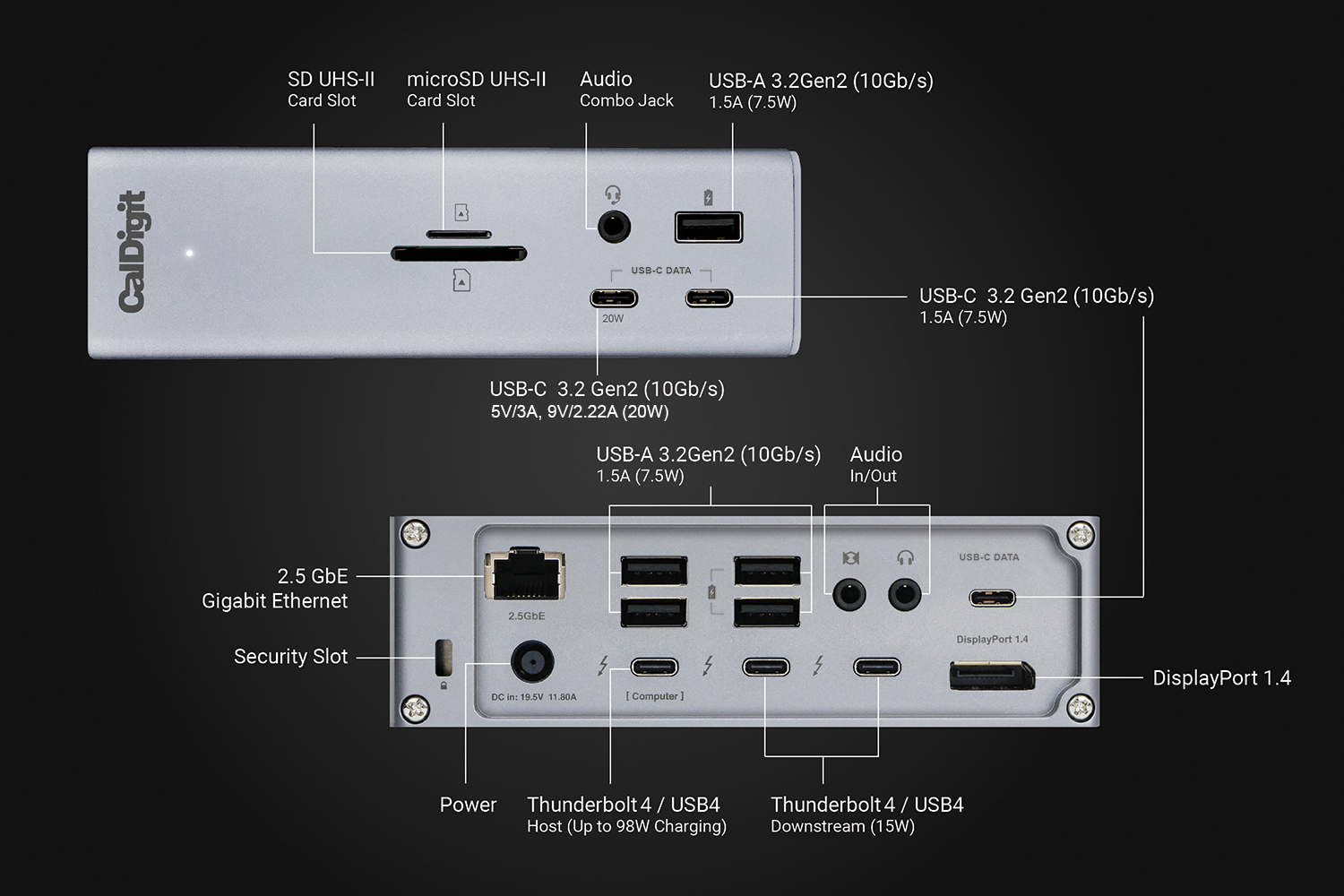
CalDigit's TS4 is a useful reference point rather than a universal recommendation. Its official page lists 18 ports, 98W laptop charging, 8K display support, dual displays, 2.5GbE and Thunderbolt 4/USB4 connectivity. CalDigit also notes that features vary by host, which is exactly the rule buyers should keep in mind.
Plugable's TBT4-UDZ is another practical UK-available example when stock and channel pricing make sense. Plugable lists Thunderbolt 4, USB4 and USB-C compatibility, 98W certified host charging, multiple display outputs, 2.5GbE, SD and microSD. Its documentation is useful because it separates Windows and Mac display behavior.
Thunderbolt 4 is not automatically the right answer for a single 1080p or 4K office monitor. For that simpler setup, a clear USB-C DisplayPort Alt Mode dock can be enough.
Thunderbolt 5 is for bandwidth-heavy desks
Thunderbolt 5 keeps the USB-C connector but raises the bandwidth ceiling. Thunderbolt guidance describes 80Gbps and 120Gbps-class display-heavy modes, which matter when the whole chain supports them: laptop, dock, cable, displays, external storage and operating system.
This is valuable for creator desks that combine fast external NVMe drives with high-resolution or high-refresh displays. It is not important for a school laptop, a browser-and-documents desk, or one 4K monitor. Do not pay for Thunderbolt 5 only because it is newer. If the host is Thunderbolt 4 or plain USB-C, the dock cannot make the laptop behave like a Thunderbolt 5 system.
The same workload-first logic applies to our RAM capacity guide for 2026 and NVMe SSD upgrade guide.
DisplayPort Alt Mode, MST and macOS limits
DisplayPort Alt Mode lets USB-C carry a native display signal. Many USB-C docks convert that signal to HDMI or DisplayPort. On Windows, some docks split one DisplayPort signal into multiple extended desktops using MST, or Multi-Stream Transport.
Mac buyers need to treat MST as the compatibility trap. Apple's UK support page for MacBook Pro displays says the maximum number of external displays depends on the Mac model and display resolution and refresh rate. It also says supported hubs or daisy chains can route displays over one Thunderbolt port but do not increase the maximum number of displays the Mac can connect.
The practical translation: a dock cannot override the Mac's external display limit. Plugable support material is blunt about this class of problem: Windows and many ChromeOS systems commonly support MST, while Apple systems may mirror where a Windows laptop would extend.
For base Apple Silicon Macs, check Apple's page for the exact chip before buying a dual-display dock. For MacBook Pro models with Pro or Max chips, native Thunderbolt docks are usually more predictable. If you need extra office displays beyond native limits, DisplayLink can help, but it is software-driven and not equivalent to native GPU output.
Charging wattage: check host power, not brick size
USB Power Delivery is why many docks can run a desk through one cable. The USB-IF USB Power Delivery page explains that USB PD 3.1 expanded beyond the older 100W limit and introduced 140W, 180W and 240W levels through higher-voltage modes.
For dock buying, the important number is host charging. A dock may ship with a large power supply because it powers the dock, USB accessories, phones, drives and the laptop. The laptop may receive 60W, 85W, 90W, 98W, 100W or 140W.
Thin-and-light laptops may be fine at 60W to 90W. Larger creator laptops and some mobile workstations may drain under heavy CPU or GPU load if the dock supplies far less than the original charger. CalDigit lists 98W for the TS4. OWC's Thunderbolt Go Dock lists a built-in power supply and 90W laptop charging. Higher-end Thunderbolt 5 docks may offer more, but only useful if the laptop supports that charging mode.
Bandwidth sharing and cable problems
Dock marketing often lists every port separately. Real desks use them together. The upstream connection to the laptop is shared by displays, Ethernet, USB storage, audio, card readers and sometimes PCIe devices.
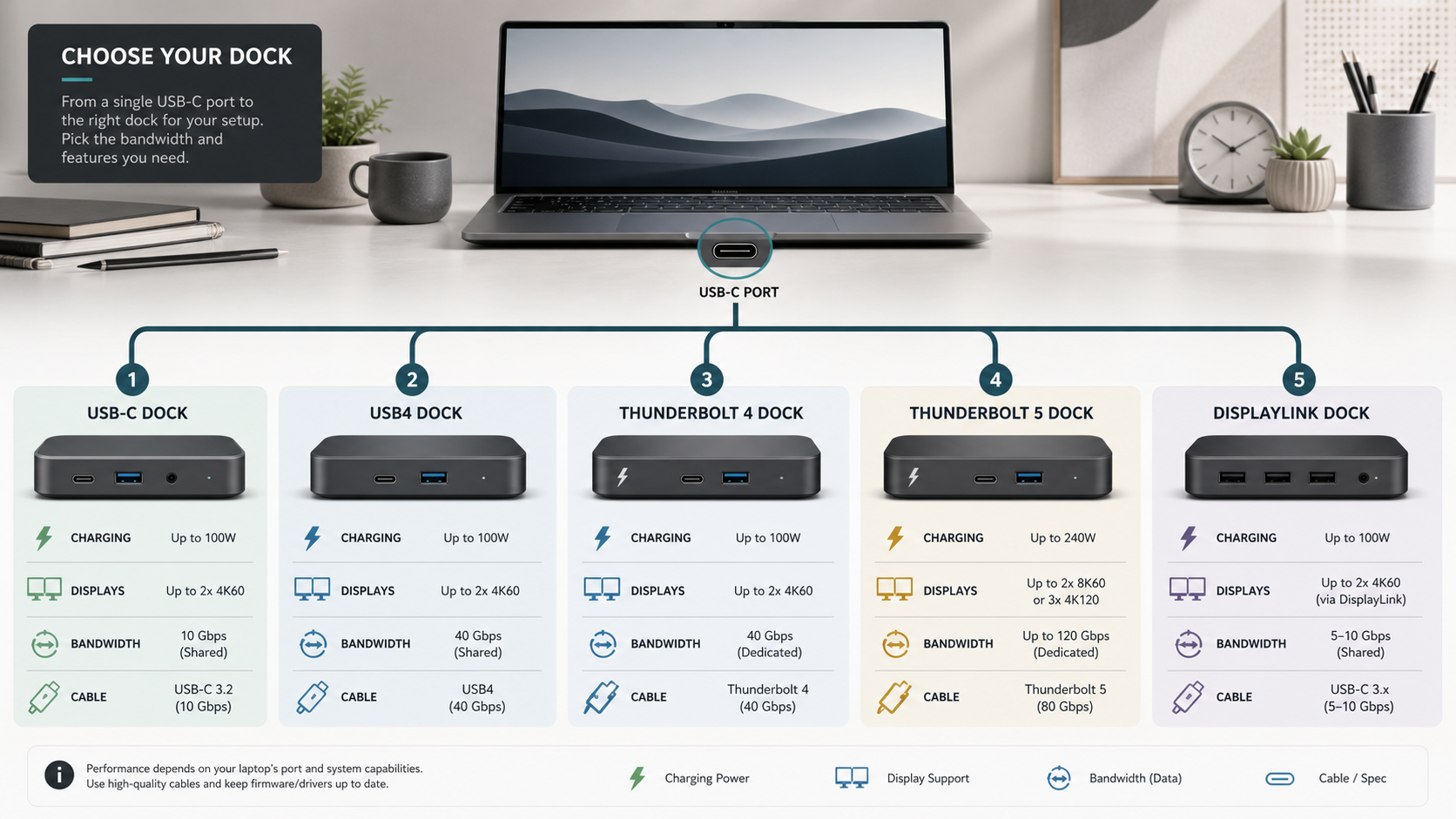
A 40Gbps Thunderbolt 4 or USB4 link has far more room than a 10Gbps USB-C dock, but it is not unlimited. Dual 4K displays, a fast SSD and 2.5GbE can compete for the same host link. That is why protocol matters more than port count. A dock with fewer ports and a stronger upstream link can be better than a crowded hub with a weaker connection.
The cable can quietly break the setup. A USB-C cable may be charge-only, USB 2.0 only, 10Gbps, 40Gbps, 80Gbps, 100W or 240W. For Thunderbolt 4 and USB4, use the dock's supplied cable or a certified cable with the required speed and wattage. For Thunderbolt 5, use a certified cable that matches the dock's bandwidth. Do not troubleshoot a premium dock with a random phone charging cable.
Named dock examples to compare in the UK
These examples are not ranked and are not first-hand recommendations. Use them as reference patterns when checking UK listings.
CalDigit TS4: a high-end Thunderbolt 4 desk dock with 18 ports, 98W host charging, dual display support, 2.5GbE and card readers. It fits laptops that can use the Thunderbolt feature set.
Plugable TBT4-UDZ: a Thunderbolt 4/USB4/USB-C dock with 98W certified charging and detailed notes on operating-system display behavior. It is useful for buyers who need explicit Mac-versus-Windows guidance.
OWC Thunderbolt Go Dock: a Thunderbolt dock with built-in power supply and 90W laptop charging. The built-in PSU is the differentiator for hot-desking, travel and cleaner cable management.
Common buying mistakes
The first mistake is buying by connector shape: USB-C on both ends does not prove Thunderbolt, USB4, dual displays or enough charging power. The second is ignoring the laptop chip, especially on Macs where external display support changes by model. The third is chasing port count instead of weekly devices such as monitors, Ethernet, headset, SD card, SSD, webcam and audio. The fourth is treating DisplayLink as native video; it can help office desks but depends on software and may be weaker for gaming, protected video or colour-critical work.
Internal buying checklist
Before buying, write down five things: the laptop model and chip, the exact port label, the number and resolution of external displays, the original charger wattage, and the desk devices you need every week.
Then match the dock to that list. One monitor and charging may only need USB-C with DisplayPort Alt Mode. Two native displays, fast storage and a professional desk usually point to Thunderbolt 4. Display-heavy new workstations can justify Thunderbolt 5 when every part of the chain supports it.
For adjacent decisions, read our OLED vs IPS monitor guide, Wi-Fi 7 vs Wi-Fi 6E and repairable laptops guide.
FAQ
Is Thunderbolt the same as USB-C?
No. USB-C is the physical connector. Thunderbolt is a protocol and certification layer that uses USB-C on modern laptops. A USB-C port may support Thunderbolt, USB4, DisplayPort Alt Mode, charging, or only basic USB data. Check the laptop specification.
Can I use a Thunderbolt dock with a USB-C laptop?
Sometimes, with reduced features. Many modern Thunderbolt docks can fall back to USB-C or USB4 modes, but display count, downstream ports, charging and storage speed may change. Read the dock's USB-C host notes before buying.
Do I need Thunderbolt 5 for dual 4K monitors?
Usually no. Thunderbolt 4 or a strong USB4 setup is enough for many dual 4K 60Hz desks when the laptop supports the display count. Thunderbolt 5 is more relevant for higher refresh rates, higher resolutions and fast storage at the same time.
Why do two monitors work on Windows but not on my Mac?
Many USB-C docks use MST to split one DisplayPort signal into multiple extended displays. Windows commonly supports that. macOS support is more limited, and Apple also limits external display count by Mac model and chip. Check Apple's exact display page first.
Is DisplayLink a good MacBook workaround?
It can be good for office work when you need extra extended displays beyond native limits. It is not the same as native Thunderbolt video. DisplayLink requires software and may add compression, latency or app-specific limits.
What charging wattage should my dock have?
Match the laptop's normal charger as closely as practical. Thin laptops may be fine with 60W to 90W. Larger creator laptops may need around 100W or 140W to avoid battery drain during heavy work. Check host charging, not just dock power-brick size.
Does the cable matter?
Yes. A high-speed dock needs a cable that supports the required bandwidth and power. Use the supplied cable or a certified Thunderbolt/USB4 cable with the right speed and wattage. A phone charging cable can make a good dock look faulty.
Bottom line
Choose the dock by the laptop's real port capability, not the USB-C shape. For one display and light accessories, USB-C with DisplayPort Alt Mode can be enough. For a serious one-cable desk, Thunderbolt 4 is the current compatibility sweet spot. Thunderbolt 5 is worth paying for only when the laptop, cable, displays and storage can use it.
Sources used include USB-IF's pages for USB Type-C, USB4 and USB Power Delivery, the Thunderbolt Technology FAQ, Apple's UK display support page, and official pages from CalDigit, Plugable and OWC. For disclosure and review boundaries, see /about/ and /editorial-policy/.